I recently started learning swift, while learning I started to create simple game. I wanted to make my game full screen, but I was unable to hide top status bar from Interface builder. No matter what I change that status bar was always visible.
Buf I found following code snippet, if you add this code in your View Controller file, you can easily hide status bar.
I was trying to build Unity 3D project for simulator SDK. I wanted to get different screen size screen shot.
But when I tried to build it I got following build error.
_clock$UNIX2003", referenced from
I found one work around to resolve this issue. We need to add following patch to main.mm file.
#include <time.h>

// "_clock$UNIX2003", referenced from:
//Temporary hack for building Simulator Project for Unity
extern "C"
{
    clock_t
    clock$UNIX2003(void)
    {
        return clock();
    }
}
Once I added above patch build started working fine for me and I was able to run project on Simulator.
While working on my Unity Project, I faced some strange problem. I had few buttons on screen and I was handling touch by handling Mouse Event. While it worked fine if you use it with mouse, but when I try same on phone with Touch, I realized that my button can not detect touch if I already touched some other button. So basically in case of multi touch, mouse events do not work.
This introduced problem if user is touching button very rapiddly, so to resolve issue, we need to handle multi touch.
Handling multi touch is simple in Unity. You can put the following code in Update method and you will be ready to handle multi touch.
  // Check if there is any touch event
  if (Input.touchCount > 0)
  {
   //get last touch and its location on screen
   Touch touch = Input.GetTouch(Input.touchCount-1);
   Vector3 wp = Camera.main.ScreenToWorldPoint(touch.position);

   //check if that location collides with our collider
   if (collider2D == Physics2D.OverlapPoint(wp)){
    if(touch.phase == TouchPhase.Began){
    // Touch just began
    }else if(touch.phase == TouchPhase.Canceled
              || touch.phase == TouchPhase.Ended ) {
    //Touch canceled or ended
    }
   }
  }
I added GamePad support to my CrazyFlight game for BB10. You can see demo here.
In this post I will describe, how we can add GamePad support to BB10 cascades or Qt app.
First we should add use_gamepad permission to bar-descriptor.xml file. This is not necessary to enable gamepad support but its necessary for AppWorld to detect that your game supports GamePad, this helps in app discovery process.
<permission>use_gamepad</permission>
We should also add libscreen dependency to our .pro file.
LIBS += -lscreen
As far as I know there is no Cascades API for handling GamePad events, we need to rely on native API to get GamePad events.
I created a Helper class that handles Native API call back and send events to Cascades QML items.
Here is definition of my helper class's (GamePadObserver.h) header file.
#ifndef GAMEPADOBSERVER_H_
#define GAMEPADOBSERVER_H_

class GamePadObserver: public QObject {
 Q_OBJECT
 Q_ENUMS(GamePadButton)

 // Structure representing a game controller.
 struct GameController {
  // Static device info.
  screen_device_t handle;
  int type;
  int analogCount;
  int buttonCount;
  char id[64];

  // Current state.
  int buttons;
  int analog0[3];
  int analog1[3];

  // Text to display to the user about this controller.
  char deviceString[256];
 };

public:
 //Enum which we will use to send signal when GamePad event is detected
 enum GamePadButton{
   A_BUTTON=0,
   B_BUTTON,
   C_BUTTON,
   X_BUTTON,
   Y_BUTTON,
   Z_BUTTON,
   MENU1_BUTTON,
   MENU2_BUTTON,
   MENU3_BUTTON,
   MENU4_BUTTON,
   L1_BUTTON,
   L2_BUTTON,
   L3_BUTTON,
   R1_BUTTON,
   R2_BUTTON,
   R3_BUTTON,
   DPAD_UP_BUTTON,
   DPAD_DOWN_BUTTON,
   DPAD_LEFT_BUTTON,
   DPAD_RIGHT_BUTTON,
   NO_BUTTON
 };

public:
 GamePadObserver(QObject* parent = 0);
 virtual ~GamePadObserver();

 //Main event loop should send event to this handler if it can not handle event by itself
 //This handler will try to handle event if its related to GamePad
 void handleScreenEvent(bps_event_t *event);

signals:
        //Signals will be emitted when Gamepad events is detected
 void buttonReleased(int button);
 void buttonPressed(int button);

private:
 //Helper methods to discover the GamePad and device connection
 void discoverControllers();
 void initController(GameController* controller, int player);
 void loadController(GameController* controller);
 void handleDeviceConnection(screen_event_t screen_event);

 // Methods to handle gamepad events
 void handleGamePadInput(screen_event_t screen_event);
 QString gamePadButtonAsString(GamePadButton button);

private:
 screen_context_t _screen_ctx;
 GameController _controllers[2];
 bool _conneted;
 GamePadButton _lastButton;
};
#endif /* GAMEPADOBSERVER_H_ */
Now let's see source file.
In constructor we are creating screen context and then trying to discover if there is GamePad connected to device already.
#define SCREEN_API(x, y) rc = x; \
    if (rc)  printf("\n%s in %s: %d, %d", y, __FUNCTION__,__LINE__, errno)

GamePadObserver::GamePadObserver( QObject* parent)
: QObject(parent),_screen_ctx(0),_conneted(false)
{
 // Create a screen context that will be used to create an EGL surface to receive libscreen events.
 SCREEN_API(screen_create_context(&_screen_ctx, SCREEN_APPLICATION_CONTEXT), "create_context");
 discoverControllers();
}

void GamePadObserver::discoverControllers()
{
    // Get an array of all available devices.
    int deviceCount = 0;
    SCREEN_API(screen_get_context_property_iv(_screen_ctx, SCREEN_PROPERTY_DEVICE_COUNT, &deviceCount), "SCREEN_PROPERTY_DEVICE_COUNT");
    screen_device_t* devices = (screen_device_t*) calloc(deviceCount, sizeof(screen_device_t));
    SCREEN_API(screen_get_context_property_pv(_screen_ctx, SCREEN_PROPERTY_DEVICES, (void**)devices), "SCREEN_PROPERTY_DEVICES");

    // Scan the list for gamepad and joystick devices.
    int controllerIndex = 0;
    for (int i = 0; i < deviceCount; i++) {
        int type;
        SCREEN_API(screen_get_device_property_iv(devices[i], SCREEN_PROPERTY_TYPE, &type), "SCREEN_PROPERTY_TYPE");

        if ( !rc && (type == SCREEN_EVENT_GAMEPAD || type == SCREEN_EVENT_JOYSTICK)) {
            // Assign this device to control Player 1 or Player 2.
            GameController* controller = &_controllers[controllerIndex];
            controller->handle = devices[i];
            loadController(controller);

            // We'll just use the first compatible devices we find.
            controllerIndex++;
            if (controllerIndex == MAX_CONTROLLERS) {
                break;
            }
        }
    }
    free(devices);
}
loadController setup our GameController structure, that we will use to store currently pressed buttons while handling the events.
void GamePadObserver::loadController(GameController* controller)
{
    // Query libscreen for information about this device.
    SCREEN_API(screen_get_device_property_iv(controller->handle, SCREEN_PROPERTY_TYPE, &controller->type), "SCREEN_PROPERTY_TYPE");
    SCREEN_API(screen_get_device_property_cv(controller->handle, SCREEN_PROPERTY_ID_STRING, sizeof(controller->id), controller->id), "SCREEN_PROPERTY_ID_STRING");
    SCREEN_API(screen_get_device_property_iv(controller->handle, SCREEN_PROPERTY_BUTTON_COUNT, &controller->buttonCount), "SCREEN_PROPERTY_BUTTON_COUNT");

    // Check for the existence of analog sticks.
    if (!screen_get_device_property_iv(controller->handle, SCREEN_PROPERTY_ANALOG0, controller->analog0)) {
     ++controller->analogCount;
    }

    if (!screen_get_device_property_iv(controller->handle, SCREEN_PROPERTY_ANALOG1, controller->analog1)) {
     ++controller->analogCount;
    }

    if (controller->type == SCREEN_EVENT_GAMEPAD) {
        sprintf( controller->deviceString, "Gamepad device ID: %s", controller->id);
        qDebug() << "Gamepad device ID" <<  controller->id;
    } else {
        sprintf( controller->deviceString, "Joystick device: %s", controller->id);
        qDebug() << "Joystick device ID" <<  controller->id;
    }
}
handleScreenEvent function should be called from main event loop when event is related to screen domain.
This function check if event type is GamePad device connection or its GamePad button event and handle it accordingly.
void GamePadObserver::handleScreenEvent(bps_event_t *event)
{
    int eventType;

    screen_event_t screen_event = screen_event_get_event(event);
    screen_get_event_property_iv(screen_event, SCREEN_PROPERTY_TYPE, &eventType);

    switch (eventType) {
        case SCREEN_EVENT_GAMEPAD:
        case SCREEN_EVENT_JOYSTICK:
        {
         handleGamePadInput(screen_event);
         break;
        }
        case SCREEN_EVENT_DEVICE:
        {
         // A device was attached or removed.
         handleDeviceConnection(screen_event);
         break;
        }
    }
}
handleDeviceConnection handles GamePad device connection. If it detects new connection then it loads new device, in case of device disconnection it remove device.
void GamePadObserver::handleDeviceConnection(screen_event_t screen_event)
{
    // A device was attached or removed.
    screen_device_t device;
    int attached;
    int type;

    SCREEN_API(screen_get_event_property_pv(screen_event, SCREEN_PROPERTY_DEVICE, (void**)&device), "SCREEN_PROPERTY_DEVICE");
    SCREEN_API(screen_get_event_property_iv(screen_event, SCREEN_PROPERTY_ATTACHED, &attached), "SCREEN_PROPERTY_ATTACHED");

    if ( attached ) {
        SCREEN_API(screen_get_device_property_iv(device, SCREEN_PROPERTY_TYPE, &type), "SCREEN_PROPERTY_TYPE");
    }

    int i;
    if (attached && (type == SCREEN_EVENT_GAMEPAD || type == SCREEN_EVENT_JOYSTICK)) {
        for (i = 0; i < MAX_CONTROLLERS; ++i) {
            if (!_controllers[i].handle) {
                _controllers[i].handle = device;
                loadController(&_controllers[i]);
                break;
            }
        }
    } else {
        for (i = 0; i < MAX_CONTROLLERS; ++i) {
            if (device == _controllers[i].handle) {
                initController(&_controllers[i], i);
                break;
            }
        }
    }
}

void GamePadObserver::initController(GameController* controller, int player)
{
    // Initialize controller values.
    controller->handle = 0;
    controller->type = 0;
    controller->analogCount = 0;
    controller->buttonCount = 0;
    controller->buttons = 0;
    controller->analog0[0] = controller->analog0[1] = controller->analog0[2] = 0;
    controller->analog1[0] = controller->analog1[1] = controller->analog1[2] = 0;
    sprintf(controller->deviceString, "Player %d: No device detected.", player + 1);
}
handleGamePadInput function that handles GamePad events.
void GamePadObserver::handleGamePadInput(screen_event_t /*screen_event*/)
{
    int i;
    for (i = 0; i < MAX_CONTROLLERS; i++) {
        GameController* controller = &_controllers[i];

        if ( controller->handle ) {
            GamePadButton gamePadButton = NO_BUTTON;

            // Get the current state of a gamepad device.
            SCREEN_API(screen_get_device_property_iv(controller->handle, SCREEN_PROPERTY_BUTTONS, &controller->buttons), "SCREEN_PROPERTY_BUTTONS");

            if (controller->analogCount > 0) {
             SCREEN_API(screen_get_device_property_iv(controller->handle, SCREEN_PROPERTY_ANALOG0, controller->analog0), "SCREEN_PROPERTY_ANALOG0");
            }

            if (controller->analogCount == 2) {
             SCREEN_API(screen_get_device_property_iv(controller->handle, SCREEN_PROPERTY_ANALOG1, controller->analog1), "SCREEN_PROPERTY_ANALOG1");
            }

            for(int i = A_BUTTON ; i < NO_BUTTON ; ++i) {
             if( controller->buttons & (1 << i) ) {
              gamePadButton = (GamePadButton)(i);
              break;
             }
            }

            if( gamePadButton == NO_BUTTON ) {
             emit buttonReleased( _lastButton );
             _lastButton = NO_BUTTON;
            }
            else if( _lastButton != gamePadButton ) {
             emit buttonReleased(_lastButton);
             emit buttonPressed(gamePadButton);
             _lastButton = gamePadButton;
            }
        }
    }
}
Now we have all necessary implementation to handle the GamePad connection and GamePad button events.
But we should pass events related to GamePad to our helper class when we receive it in our main event handler.
To do that, In our main function we should register main bps event loop or filter as below and can use GamePadObserver as described.
And finally, out GamePadObserver class is ready to deliver GamePad events. To handle GamePad events in QML you can use GamePadObaserver class as below.
As you might know BB10 support gamepad, that mean you can connect gamepad to Device via Bluetooth and play games using it. And to promote gamepad enabled game, Blackberry also announced an offer. You can get more details about offer here.
For the same offer I got mine GamePad recently. I also enabled my CrazyFlight game to support GamePad. Here is demo.
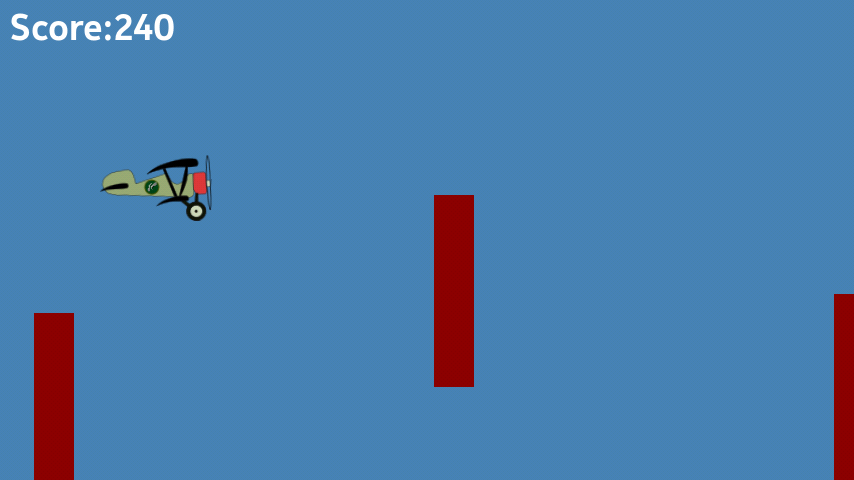
I created this game - Crazy Flight, when I was on vacation in india, to please my nephew, so he can play on my phone and I can work on my computer.
Game is created using QML and C++ and backend and works on N9/N950 Harmattan plaform. Well programing did not take much time but creating graphics and polishing it took a while and around a week time I was able to publish this game on Ovi store for N9.
Game is vary simple to play, you have to touch on screen to make plane go up and release touch to go down and avoid obstacle which may come.
As I received Nokia N9 Dev kit from Qt Ambassador program, I started working on porting my existing Maemo 5 application to Maemo 6 (Harmattan/Meego) platform.
It seems from documentation that preferred way to create Meego application is by using QML and com.meego components.
In order to make my Qt and QML application to work correctly on meego I needed to make quite a few changes.
First thing I noticed is that, Qt Widget are available on harmattan but that just for backword compatiblity and dose not provide native look and feel for Harmattan platform. That mean Qt Widget library are kind of useless on harmattan. We need to use meego touch library or meego QML component.
Some of my application were QWidget based or some were Graphics View based. I ported most of application to use QML and If i can not port to use QML then I used QDeclarativeItem to load that component to QML.
For some of my application I was locking orientation, using "WA_Maemo5PortraitOrientation" flag in view.setAttribute(Qt::WA_Maemo5PortraitOrientation, true);
API call, But on Harmattan I need to use following code in QML page.
In one of my application I was using GraphicsView framework, I loaded graphics view to QML using QDeclarativeItem and QGraphicsProxyWidget. Visit following link for more info.
But after GraphicsView loaded to QML, view was displaying some white area that initially I was not able to remove. After a white I realized it was frame for graphics view. I removed it by using setFrameStyle API.
setFrameStyle(QFrame::NoFrame);
Desktop file also needs to be changed to locate icon correctly and to launch only single instance of application.
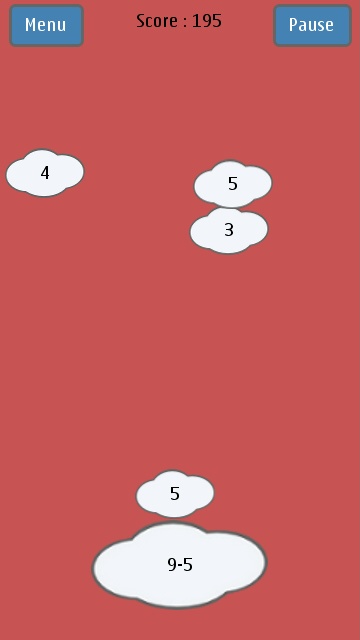
I had created and submitted The Math Game for Meego Coding competition. Find more information about this game here.
Meantime I had also uploaded the game on Ovi store. There were quite a lot problem to got it through Ovi Store QA, But finally maemo version of game got published today.
I am still now able to pass my Symbian version though. There is some problem for creating sis file using remote compiler.
This game is fun game for little ones, you can download it for free from here and from mobile visit this link.
Often while working with QML we need to create QML element dynamically on runtime depending upon some event like button click or something else.
Following code described how we can create QML element at runtime dynamically. In following code I am trying to create Rect QML element on runtime, set some property on element and also connecting signal from Rect element.
  function createRect(num)
  {
        var component = Qt.createComponent("Rect.qml");
        var rect = component.createObject(main,{"x":50,"y":10});
        if(rect != null ) {
            rect.name = "Test";
            rect.x =  Math.floor(Math.random() * 300 );
            rect.y = Math.floor(Math.random() * 100 );
            rect.dropped.connect(dropped);
      }
  }

 function dropped(x,y,name)
 {
    console.log("################## Dropped:"+name+"::"+ x +":"+ y);
 }
In above code "dropped" is signal defined in Rect element. And I am calling connect method of signal to connect "dropped" signal to my slot "dropped".
Following is code from "Rect.qml" that define Rect element.
In games generally we need to play small sound clips. For Qt program in such case I prefer to use Phonon module.
Following is simple sample code that plays sound clips on button click event.
In constructor I am creating media object and audio output. MediaObject class provides playback interface, AudioOutput send audio data to output device and by createPath method call we are creating connection of media object to audio output.
Then in playSound method I am setting sound file which needs to be played by calling setCurrentSource api and providing path of sound file. Finally by calling play API on media object i am playing sound file.
SoundWidget::SoundWidget(QWidget *parent) :
    QWidget(parent)
{
    QVBoxLayout* main = new QVBoxLayout(this);
    QPushButton* btn = new QPushButton("Play Sound");
    connect(btn,SIGNAL(clicked()),this,SLOT(playSound()));
    main->addWidget(btn);

    mMediaObject = new Phonon::MediaObject(this);
    mAudioOutput = new Phonon::AudioOutput(Phonon::MusicCategory, this);
    mAudioOutput->setVolume(0.5);

    Phonon::createPath(mMediaObject, mAudioOutput);
}

void SoundWidget::playSound()
{
    mMediaObject->setCurrentSource(QString("./Sound5.wav") );
    mMediaObject->play();
}
Following is header file for above code. You also need to add phonon module in Qt project file by putting "QT += phonon" in pro file.
Sometime ago I was working with a friend to create Tien Len game for iPhone. Now that game is live on Apple app store.
Tien Len (also known as Thirteen, Killer, & VC) is a popular & very addicting card game that is played around the world.
Each player is given 13 cards, and the objective is to get rid of your cards before your opponents. The lowest card (3 of spades) is played to start the game and then players take turns using strategy to beat their opponent’s hand in multiple rounds with singles, doubles, triples, straights, and bombs. Suit rank (spades<4<5 … <2) determines which hand is higher than the other.