Saturday, December 7, 2013

MogaPro gamepad Un-Boxing

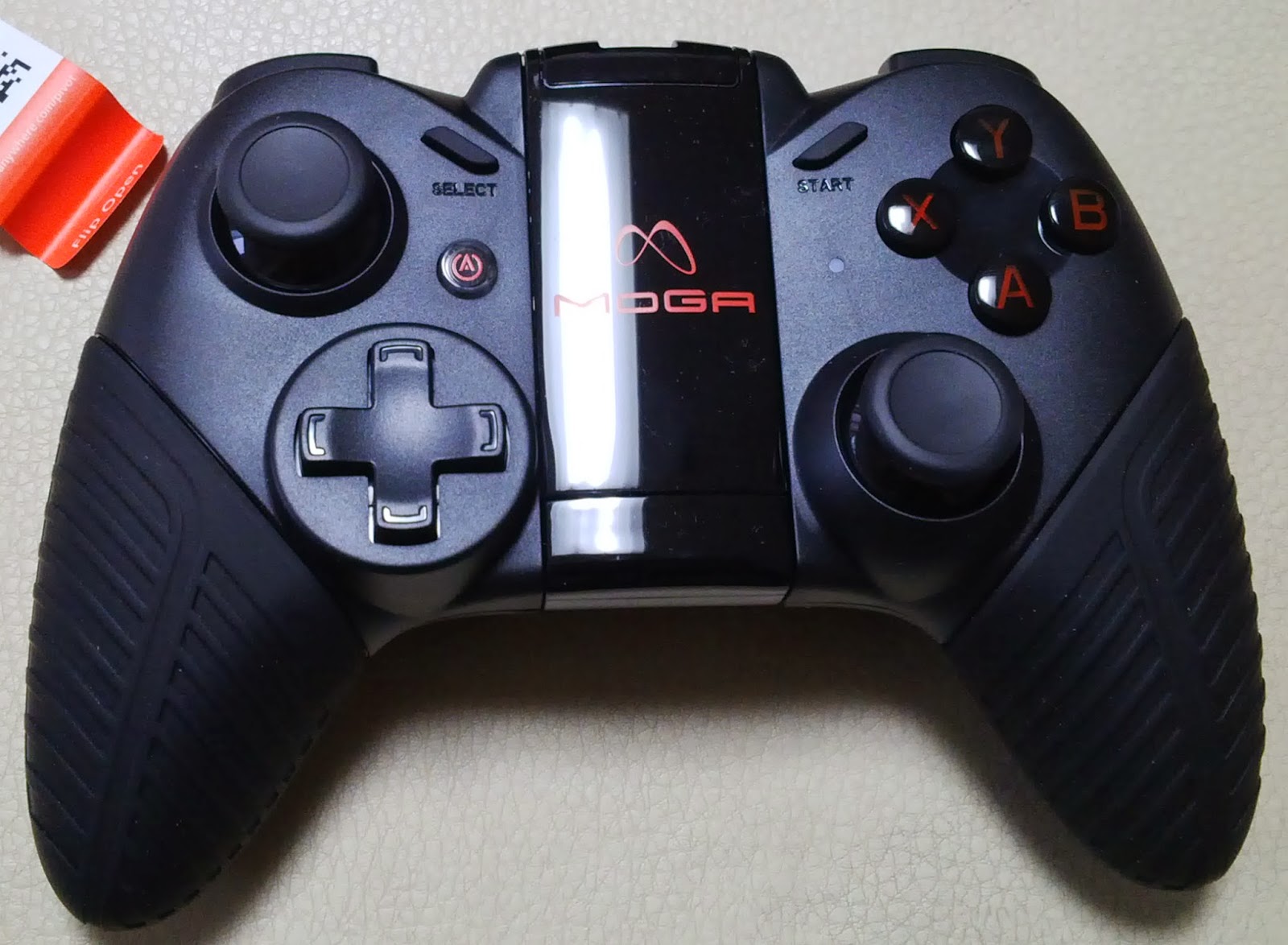
So I received my MogaPro gamepad tanks to BlackBerry GamePad promotion event. Here is un-boxing pictures for the same.

Box in which it came.

It came with micro USB cable to charge controller and a nice stand to place tablets.

The back side of controller.

Micro USB port to charge controller.

Front side.

Power on button and holder for Phones.

Sunday, December 1, 2013

BlackBerry gamepad offer

As you might know BB10 support gamepad, that mean you can connect gamepad to Device via Bluetooth and play games using it. And to promote gamepad enabled game, Blackberry also announced an offer. You can get more details about offer here.


For the same offer I got mine GamePad recently. I also enabled my CrazyFlight game to support GamePad. Here is demo.

Exposing C++ ENUM to QML

I was working on update of one of my game and I while re-factoring I was required to expose C++ Enum to QML code.

Following is how header looks like with definition of Enum GamePadButton. I am registering Enum with Qt's Metaobject system using Q_ENUMS macro.
class GamePadObserver: public QObject {
 Q_OBJECT
 Q_ENUMS(GamePadButton)
public:

 enum GamePadButton{
   A_BUTTON=0,
   B_BUTTON,
   C_BUTTON,
   X_BUTTON,
   Y_BUTTON,
   Z_BUTTON,
                 ...
   NO_BUTTON
 };

public:
 GamePadObserver(QObject* parent = 0);
 virtual ~GamePadObserver();
        ...
};
Now to be able to see this Enum to QML code we need to register GamePadObserver class to Qt Metaobject system.If you want to be able to create instance of class then you can use qmlRegisterType() macro.

In my case I dont want to create instace of GamePadObserver in QML, I just want to expose it enum to QML and for that purpose we can use qmlRegisterUncreatableType macro. Its useful for exposing enum and attached property. Following how we can use this macro.
#include 

int main(int argc, char **argv)
{
 qmlRegisterUncreatableType("GamePadObserver", 1, 0,"GamePadObserver", "");
        ...
}
Now we can use Enum from QML, following how we can do that.
...
import GamePadObserver 1.0
...

Rectangle {
    id:main
    ...

    Connections{
        target: GamePad
        onButtonPressed: {
  
            if( button == GamePadObserver.X_BUTTON
            || button == GamePadObserver.Y_BUTTON 
            || button == GamePadObserver.A_BUTTON 
            || button == GamePadObserver.B_BUTTON ) {
                ...
            } 
        }        
    }

}

Saturday, November 23, 2013

Using NSOperationQueue in iOS SDK

Sometimes we need to perform some task in different thread or in background. NSOperationQueue is quite handy for such purpose in iOS.

You can easily add operation you need to perform in queue just like any other object and NSOperationQueue queue will take care of its execution. You can also add operation in NSOperationQueue by specifying code block, and in many situations that's quite useful.

 Following code sample shows how we can create NSOperationQueue.
- (id)init
{
    if ((self = [super init]))
    {
        _operationQueue = [[NSOperationQueue alloc] init];
        //[_operationQueue setMaxConcurrentOperationCount:1];
    }
    return self;
}

- (void)dealloc
{
    [_operationQueue release];
    [super dealloc];
}

Below code shows how we can add operation to NSOperationQueue by code block.
- (void)requestFinished:(ASIHTTPRequest *)request {
        
    [_operationQueue addOperationWithBlock:^{
        
        //perform some useful task
        
    }];
}
   -(void) processEntries:(NSArray*) entries
   {
   }

   [_operationQueue addOperationWithBlock:^{
     [self processEntries:entries];
   }];

Saturday, November 9, 2013

Collision detection with Unity3D

So by now I know how to do animation and object creation in Unity3D. Now I started to learn how to get collision detection working with Unity3D.

In Unity3D collision is detected by using various collider objects. Box collider should work for most 2D games. There are some other shapes collider also available, but that I am not going to discuss here.

So to start, I created a basic setup, one egg and one cube which will act as wall and all I want it notification when egg collides the wall.


Now we have scene setup, so for egg to be able to detect collision, go to Box Collider in inspector, and select Is Trigger option. By selecting Is Trigger, egg can move through wall but still gives us notification of collision. In this post I am going to work with Trigger only.


For collision detection to work in Unity3D, atlest one of object needs to be rigid body. so lets add rigid body to egg.


Now we are ready, lets add script which makes egg move. script looks like below.
using UnityEngine;
using System.Collections;

public class Movement : MonoBehaviour {
 
 private int frame;
 
 // Use this for initialization
 void Start () {
  frame = 0;
 }
 
 // Update is called once per frame
 void Update () {
 
  //skipping some frame to make animation look smooth
  if( Time.frameCount % 10 != 0 ) {
   return;
  }
  
  //makeing it move
  transform.position += new Vector3((-5.0f * Time.deltaTime), 0.0f, 0.0f);
  
  //sprite animation
  frame++;
  if( frame > 8 ) {
   frame = 0;
  }
  renderer.material.mainTextureOffset = new Vector2(frame*0.125f,0);
 }
 
}
Now if you run the game, you can see egg moving but to be able to detect collision we need to add following functions to the script.
 
        void OnTriggerEnter(Collider other)
 { 
  Debug.Log("Collision enterd:" + other.gameObject.name );
 }
  
 void OnTriggerExit(Collider other)
 {
  Debug.Log("Collision exited:" + other.gameObject.name );
 }

Now if you run the game, you can see logs printed when egg pass through wall. Here is how it works.

We can also detect collision with empty game object as well.Just add empty game object to scene and add Box Collider to it. That's It should work just the same.